
Two screen layers: campaigns and applications
Introduction and orientation
Learn how the presentation and application layers work, how to use either layer or both together, and how visitors switch between them. Both layers use one screen and one playback device.
Overview and explanation
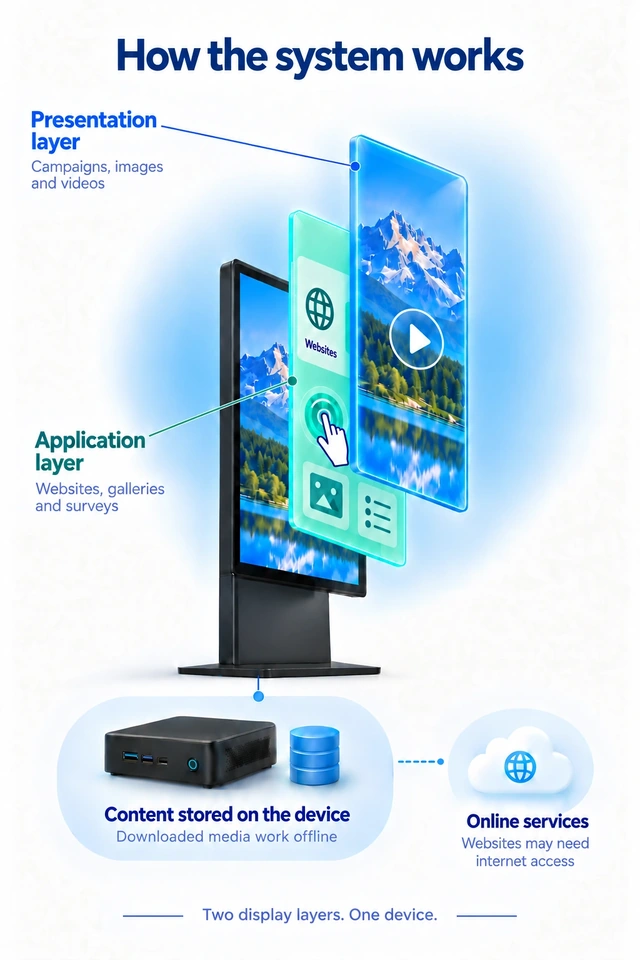
One screen, two ways to use it
While no visitor is using the screen, it can play prepared campaigns. When a visitor needs information or wants to use an application, they switch to interactive content. The layers are not two physical screens or two permanently visible halves of a display: the visitor uses the layer that is currently active.
Presentation layer: automatic playback
The presentation layer automatically plays campaigns, advertisements, information visuals and notices without visitor interaction. Prepare the content in Campaigns.
Application layer: content on demand
The application layer provides applications that visitors open when needed. Prepare them in Applications. The kiosk menu is one way to present this layer; the device can instead open a selected web application directly.
Use either layer or both together
- Presentation layer only: the device plays campaigns. Touch does not open applications, and the control for entering the application layer is hidden.
- Application layer only: the device is used for applications. The arrow for returning to the presentation layer is hidden.
- Both layers: touching the screen during campaign playback activates the application layer. The kiosk menu or the selected web application opens, depending on the default mode.
Choose which layers are enabled in the device settings.
Opening applications and returning
When both layers are enabled, touching the screen opens the application layer. Depending on the device settings, visitors see the menu of available applications or a selected web application directly. They can use the kiosk controls; after inactivity, the device returns to its default mode according to the configured timers. If you hide the system controls in your own web application, its developer can add the required buttons for switching layers directly to the website.
Selected applications, such as 3D Maze and Wheel of Fortune, support phone control through a QR code. These particular scenarios do not require a touchscreen. The control method always depends on the selected application.
The touch prompt is not another content layer
A transparent image inviting visitors to touch the screen can appear over the playing campaigns. It is a visual prompt showing that applications can be opened. It does not replace publishing the applications or enabling the application layer. Transparent areas leave the campaign visible; the position of a drawn icon does not itself define the touch area.
Content and connectivity
The playback device downloads prepared content. During an internet outage, available local content may continue according to the plan’s validity and the device settings. Websites, phone control and other online services require the relevant connection. New changes cannot reach a disconnected device.
Related topics and next steps
Use the following guides to configure the device and the visitor interaction.
Contact your software provider.