
Controlling system layers from your website
Introduction and orientation
Connect buttons on your website to navigation between the system’s layers.
When to use these functions
These JavaScript functions are available to your website when it is opened on the device through the website application. Your website developer — or you, if you develop the site yourself — can connect them to custom buttons within the page, allowing visitors to open the application menu or switch to campaign playback.
This is useful when you want to display the website full screen without the system controls and incorporate navigation between layers into your own design. The example shows a map as the default application alongside a menu of other applications.
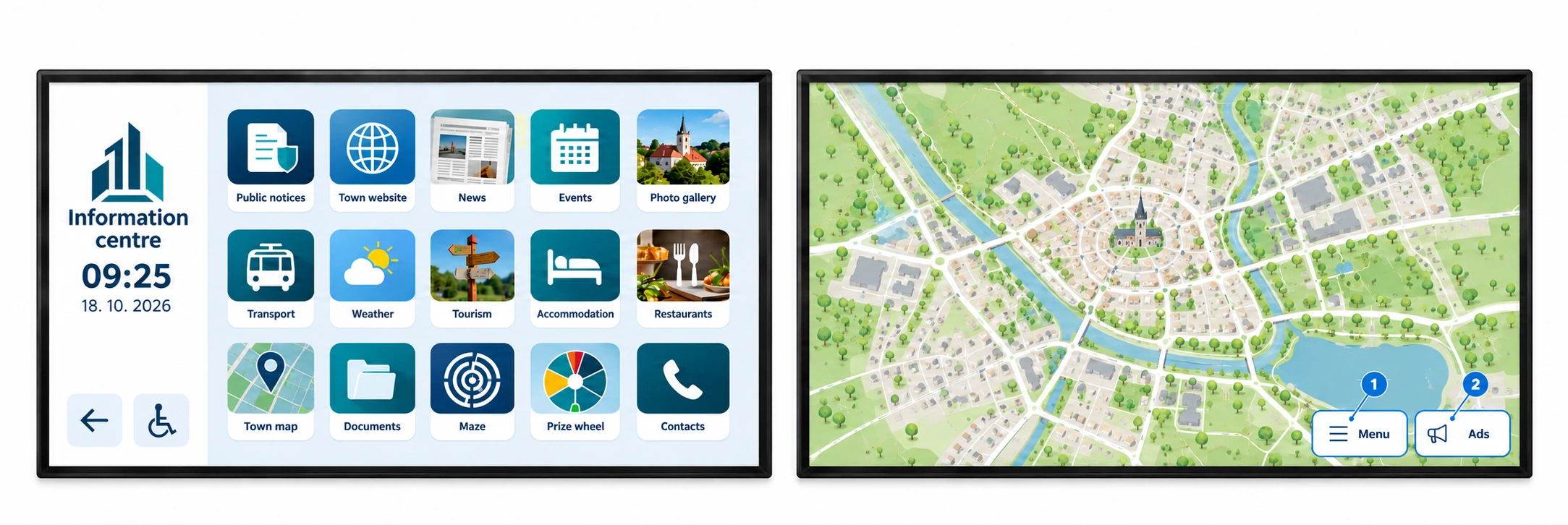
1 — Menu: a custom website button opens the app menu in the application layer, allowing visitors to leave the map and choose another app. showLayerBottom
2 — Ads: a custom website button switches to the presentation layer with campaigns. showLayerTop
The button names and appearance are examples. The website developer or supplier adds them to the embedded website. For implementation details, see the navigation functions and code examples below.
Opening the menu requires more than one currently available app; switching to ads requires the presentation layer to be enabled. Always test the intended navigation on the target device.
Who this guide is for and who is responsible
- The platform provider supplies the player’s navigation functions and documents how to use them.
- The customer selects the website displayed in the Website application and agrees the required controls with its provider.
- The embedded website’s provider or developer modifies the website itself — for example, by adding buttons and connecting them to the functions described here. The technical instructions and code examples in this guide are intended for that provider or developer. If you develop the website yourself, you also fulfil this role.
Technical reference
Technical guide for website developers
Connect your own buttons to the system’s navigation functions. Start with the shared calling conventions, then follow the individual functions and code examples.
The player provides these functions to a website opened in the website application. Check that a function is available before calling it, as shown in the examples below.
Shared calling conventions
- Request:
requestis a string containing an empty JSON object. Userequest: '{}', not the object{}itself. - Success:
onSuccessconfirms that the request was accepted, not that navigation has finished or a particular campaign is visible. The response contains no application data; do not base decisions on the value ofresponse. - Failure: handle
onFailure(error_code, error_message). The rejected requests described below return code-1. Error messages are exact interface values and must not be translated.
Available navigation functions
onUp
Requests a return through the system’s navigation. The destination depends on the web application mode and the available navigation path. This is not a return to the previous URL in the browser history and is not equivalent to window.history.back(). If returning is unavailable, the function reports the error shown below.
if (typeof window.onUp !== 'function') {
    console.warn("The player navigation function is unavailable.");
} else {
    window.onUp({
        request: '{}',
        onSuccess: function () {
            console.log("The navigation request was accepted.");
        },
        onFailure: function (error_code, error_message) {
            console.warn(error_code, error_message);
        }
    });
}
Error: error_code -1, Disabled bottom layer. Single-app kiosk.
showLayerBottom
Requests the application layer’s application menu. This requires more than one currently available item in the application list, taking their scheduled validity into account. If only one item or no items are available, the function reports the error shown below.
if (typeof window.showLayerBottom !== 'function') {
    console.warn("The player navigation function is unavailable.");
} else {
    window.showLayerBottom({
        request: '{}',
        onSuccess: function () {
            console.log("The navigation request was accepted.");
        },
        onFailure: function (error_code, error_message) {
            console.warn(error_code, error_message);
        }
    });
}
Error: error_code -1, Single-app kiosk.
showLayerTop
Requests the presentation layer. This layer must be enabled in the device configuration; otherwise, the function reports the error shown below. Acceptance of the request does not confirm that a particular campaign has played or that its content is available.
if (typeof window.showLayerTop !== 'function') {
    console.warn("The player navigation function is unavailable.");
} else {
    window.showLayerTop({
        request: '{}',
        onSuccess: function () {
            console.log("The navigation request was accepted.");
        },
        onFailure: function (error_code, error_message) {
            console.warn(error_code, error_message);
        }
    });
}
Error: error_code -1, Top layer disabled.
Use onUp for a return based on the navigation context, showLayerBottom for the application menu and showLayerTop for presentation content. Prevent rapid repeated calls, for example from repeated button presses. Calling a missing function raises a JavaScript error before onFailure can run, so the examples check availability first.
Related topics and next steps
← Back to overview – Integrations & content creation
Contact your software provider.