
Free disk space is decreasing or running low
Start by comparing free disk space over time in the hourly monitoring reports. If it keeps decreasing or is already running low, identify what is filling the storage. Insufficient space may prevent content downloads and device updates. A decrease alone does not necessarily indicate a fault; remove data only after identifying the cause.
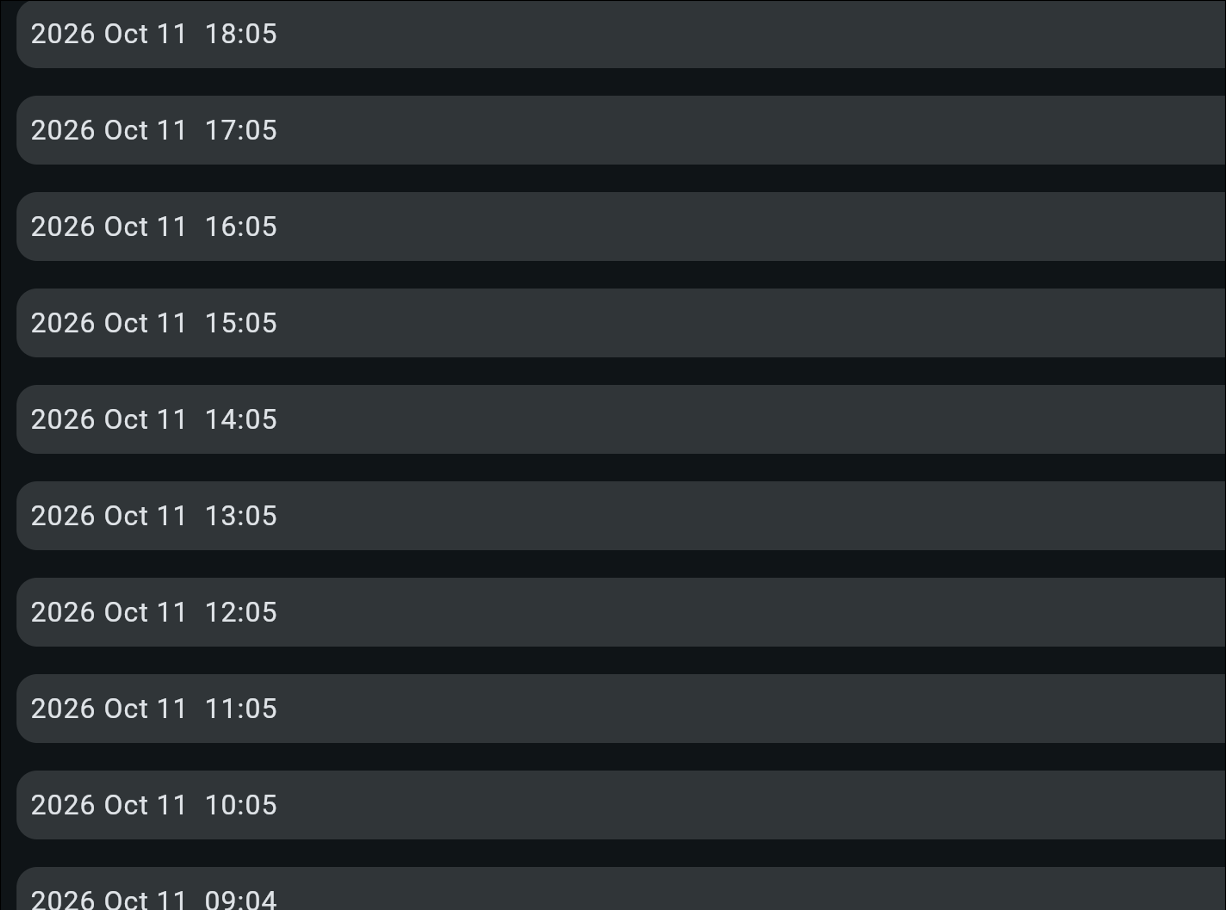
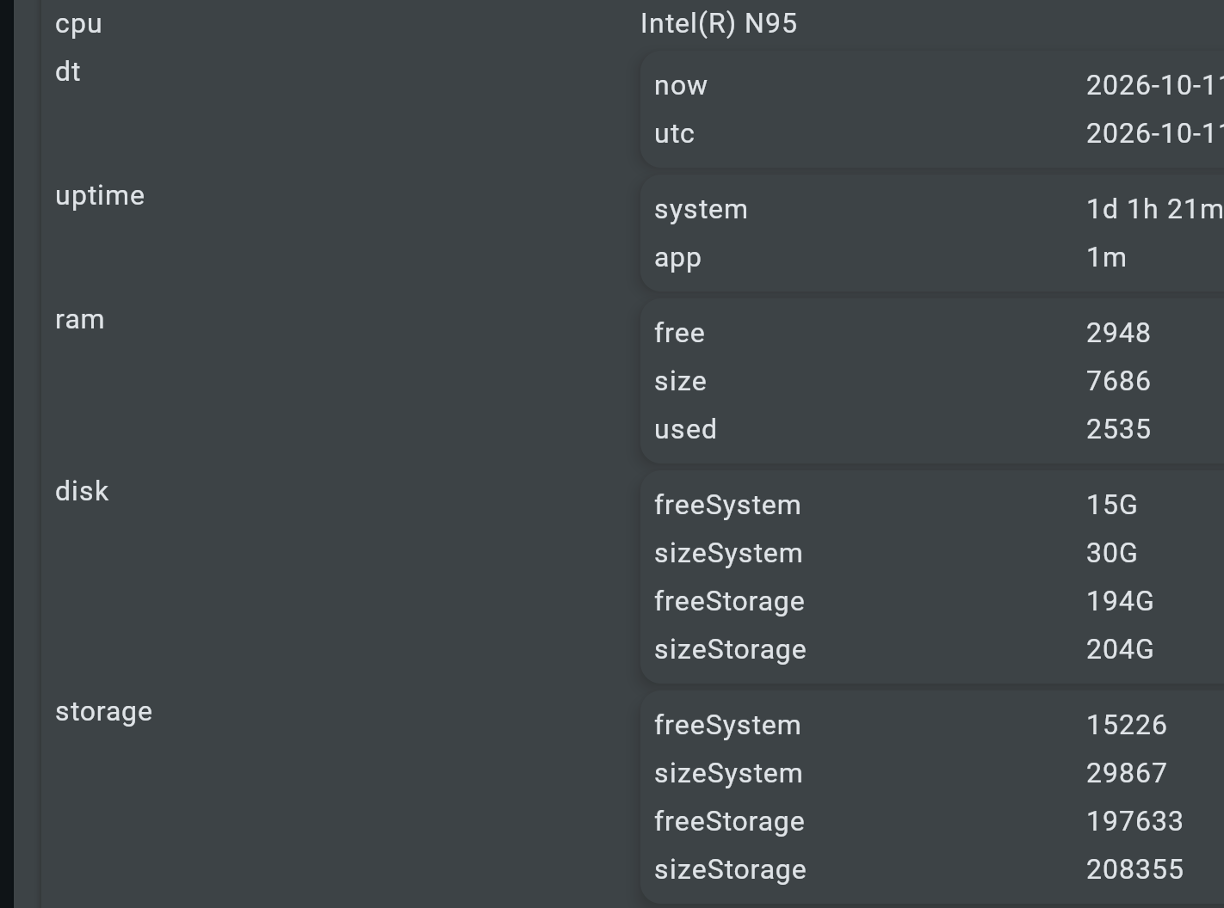
ScreenSoft provides detailed device monitoring reports every hour, including information about available disk space. By comparing consecutive reports, you can track changes in available capacity and identify a sustained decline in free space.
Example of the ScreenSoft hourly report list and the details of a selected report. freeSystem and sizeSystem show free space and total capacity for the system area; freeStorage and sizeStorage show the corresponding values for data storage. A downward trend can only be established by comparing reports over time.
How to run service commands
At the device: Use the touchscreen or a connected USB mouse to open the service menu, enter the device ID and select Terminal. Press Enter to run the command.
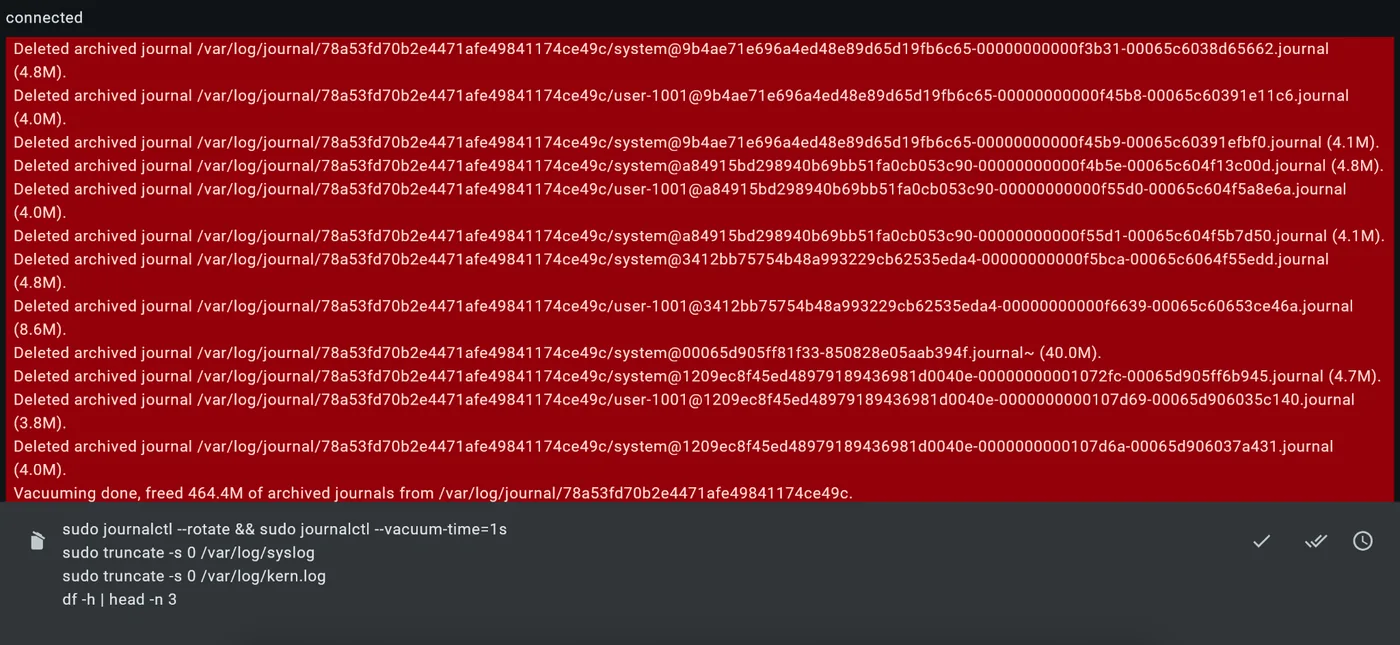
Remotely: Open Remote Console in ScreenSoft administration. You need Server Administrator permissions or higher, and the device must be online and communicating with the server. Send the command using the ✓ button.
Neither option available? Contact ScreenSoft support.
1. Investigate the cause of declining free disk space
Run the df -h / command. It provides an additional check of current usage on the filesystem containing the root directory (/); it does not replace hourly monitoring. Size is total capacity, Used is occupied space, Avail is available space, Use% is utilization and Mounted on identifies the mount point.
Command to copy:
df -h /Illustrative output (not taken from a specific device):
Filesystem      Size  Used Avail Use% Mounted on
/dev/sda2        29G   22G  5.5G  80% /
In this example, the filesystem is 29 GB, with 22 GB used and 5.5 GB available. An 80% reading alone does not indicate a fault; consider trends and the device’s needs.
2. Check system log sizes
Both commands below only inspect logs; neither deletes anything. The first lists kernel log and syslog file sizes; the second reports journal storage usage. These figures may not be fully independent.
Commands to copy:
ls -lh /var/log/kern* /var/log/syslog 2>/dev/null
journalctl --disk-usage
Why check kernel log sizes?
The kernel is the core of Linux. Kernel logs are not the size of the kernel itself: they are files recording system, hardware and driver events. A recurring USB error, for example, can produce many entries and fill storage. File size alone does not identify the cause, and deleting the log will not fix it.
3. Interpret the results
If there is sufficient free space, do not clear logs as routine maintenance. If storage is nearly full, establish whether logs or other files are responsible. An unusually large log may indicate a recurring fault. If it grows quickly after cleanup, investigate the underlying cause.
4. Freeing space – advanced service only
Warning: this advanced service block can permanently destroy diagnostic history. Use only when justified, after preserving necessary logs and with approval from an authorized technician. Do not use for routine maintenance.
Copy and send all four commands together as a single block.
sudo journalctl --rotate && sudo journalctl --vacuum-time=1s
sudo truncate -s 0 /var/log/syslog
sudo truncate -s 0 /var/log/kern.log
df -h | head -n 3- First line: Rotates the active journal and very aggressively removes archived entries.
- Second line: Empties
/var/log/syslog, which contains system and potentially application logs. - Third line: Empties
/var/log/kern.log, which contains Linux kernel, hardware and driver logs. - Fourth line: Displays the first three lines of the disk usage overview. The root filesystem may not be among them.
Contact ScreenSoft support at support@screensoft.org