
Remote Console – How to Use It
Remote Console lets authorized administrators run commands on a selected ScreenSoft Player without physically accessing the device.
Access and permissions
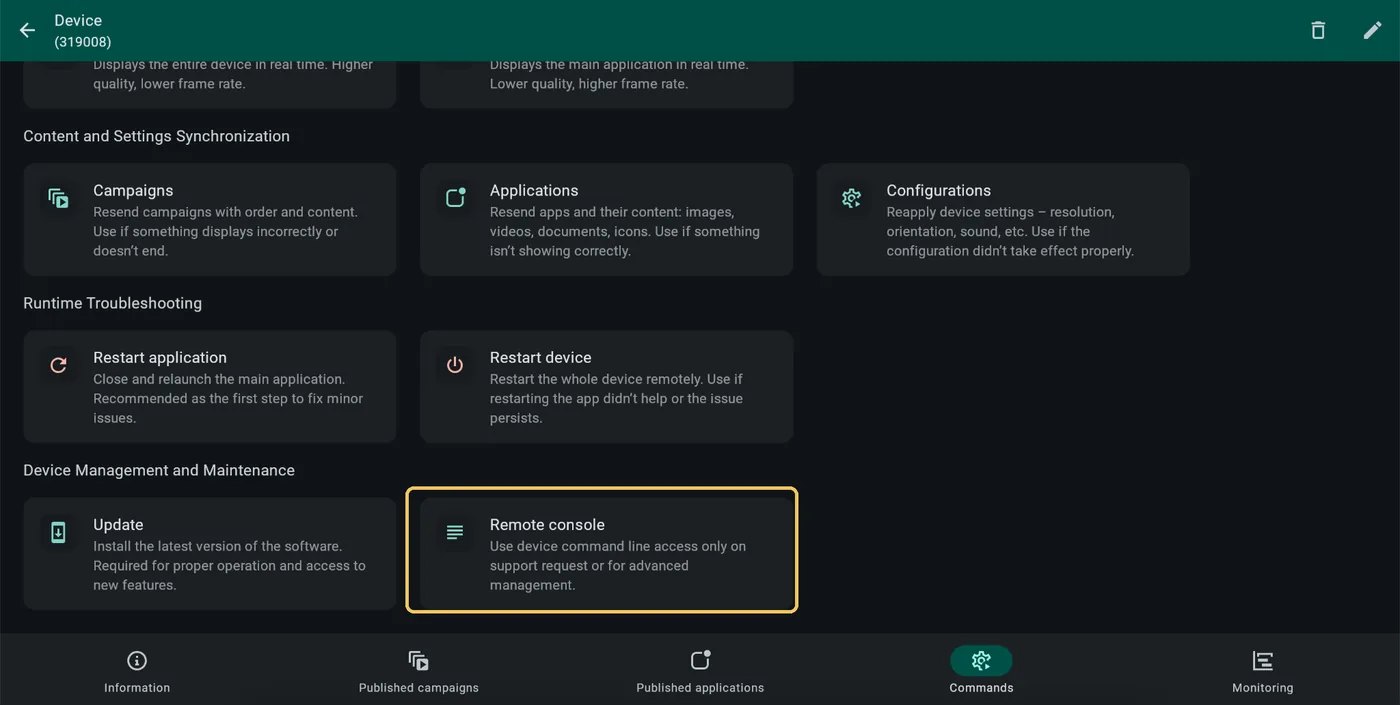
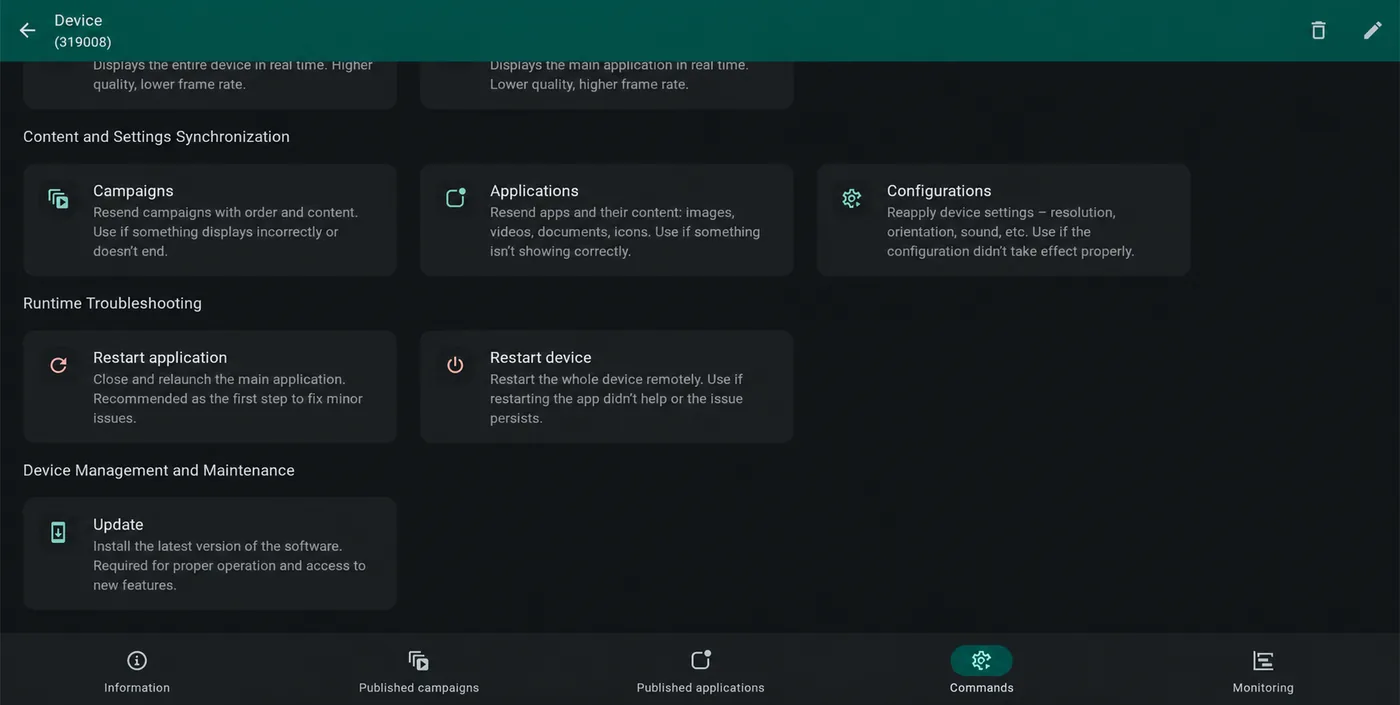
Only Server Administrator and higher roles can see the Remote console tile. Standard users do not see it under Commands. The device must be online and communicating with the server.
How to use it
- Open the selected device in the ScreenSoft administration portal.
- Select Commands, then Remote console under Device Management and Maintenance.
- Wait for connected. This alone does not guarantee that an individual command will reach the device.
- Enter a command in the bottom input field, such as pwd, and submit it using the single checkmark (✓) icon.
- Read the response above the input. pwd displays the current working directory; the example device returned /opt/device/connector.
pwdHow can I tell whether the device is communicating?
Distinguish the console connection, command submission and the device response.
Device is not communicating
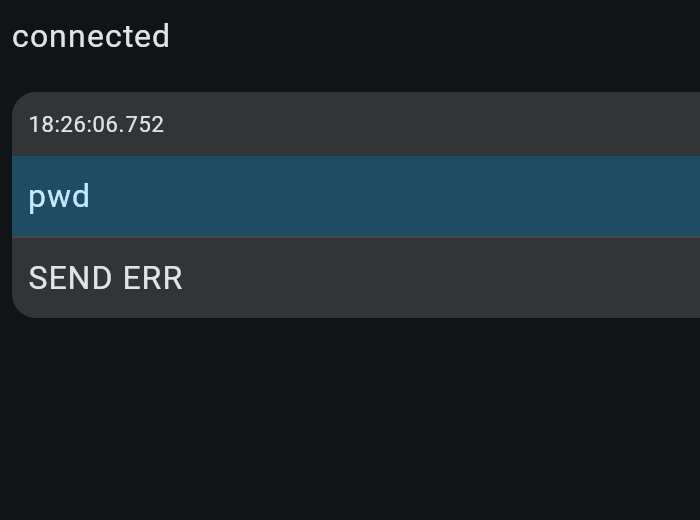
The pwd command could not be sent (SEND ERR). Communication with a particular device can fail even while connected is displayed.
Device is communicating
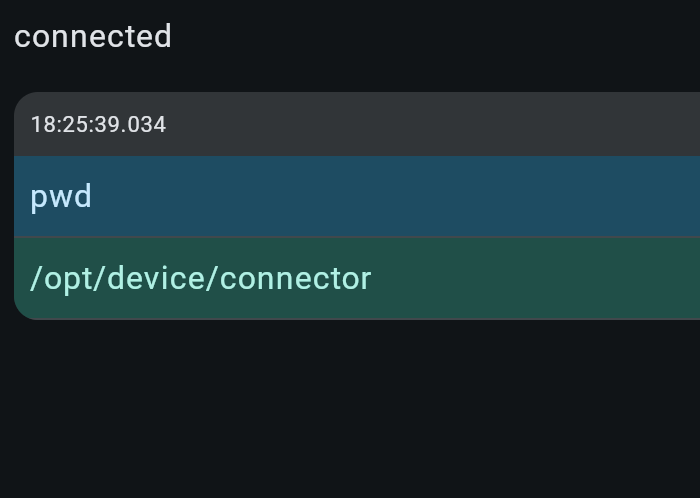
The device returned /opt/device/connector for pwd, confirming communication in this test.
connected indicates a console interface connection, not command execution. A brief SEND OK confirms sending, not successful execution. SEND ERR means sending failed and does not necessarily mean the command is invalid. Verify the actual device response and the resulting effect.
Contact ScreenSoft support at support@screensoft.org