
The device is connected to Wi‑Fi but is offline in ScreenSoft
If your device appears to be connected to Wi‑Fi but is shown as offline in ScreenSoft, follow this diagnostic procedure. Photographs of the command output will help support assess network connectivity and reachability of the target address.
Open Terminal
Open the service menu and select Terminal. The terminal window and virtual keyboard will open.
1. Check the IP addresses
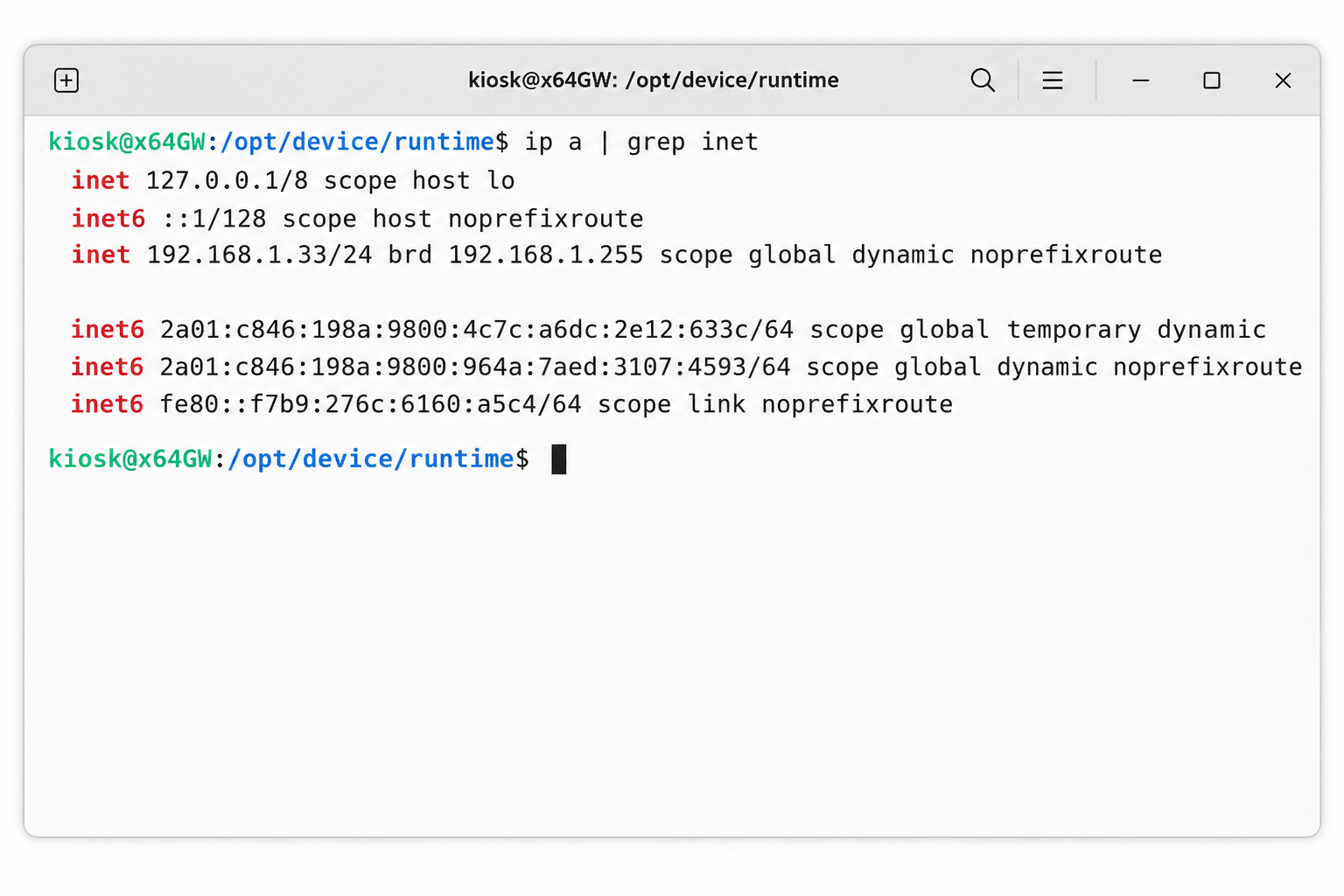
Type the following command and press Enter:
ip a | grep inetThe output shows the device’s IP addresses and helps support assess its addressing on the network. The address 127.0.0.1 refers to the computer itself and does not demonstrate a connection to the local network. An assigned IP address does not yet confirm internet access.
Photograph all relevant output from this command.
2. Check the Wi‑Fi connection and signal strength
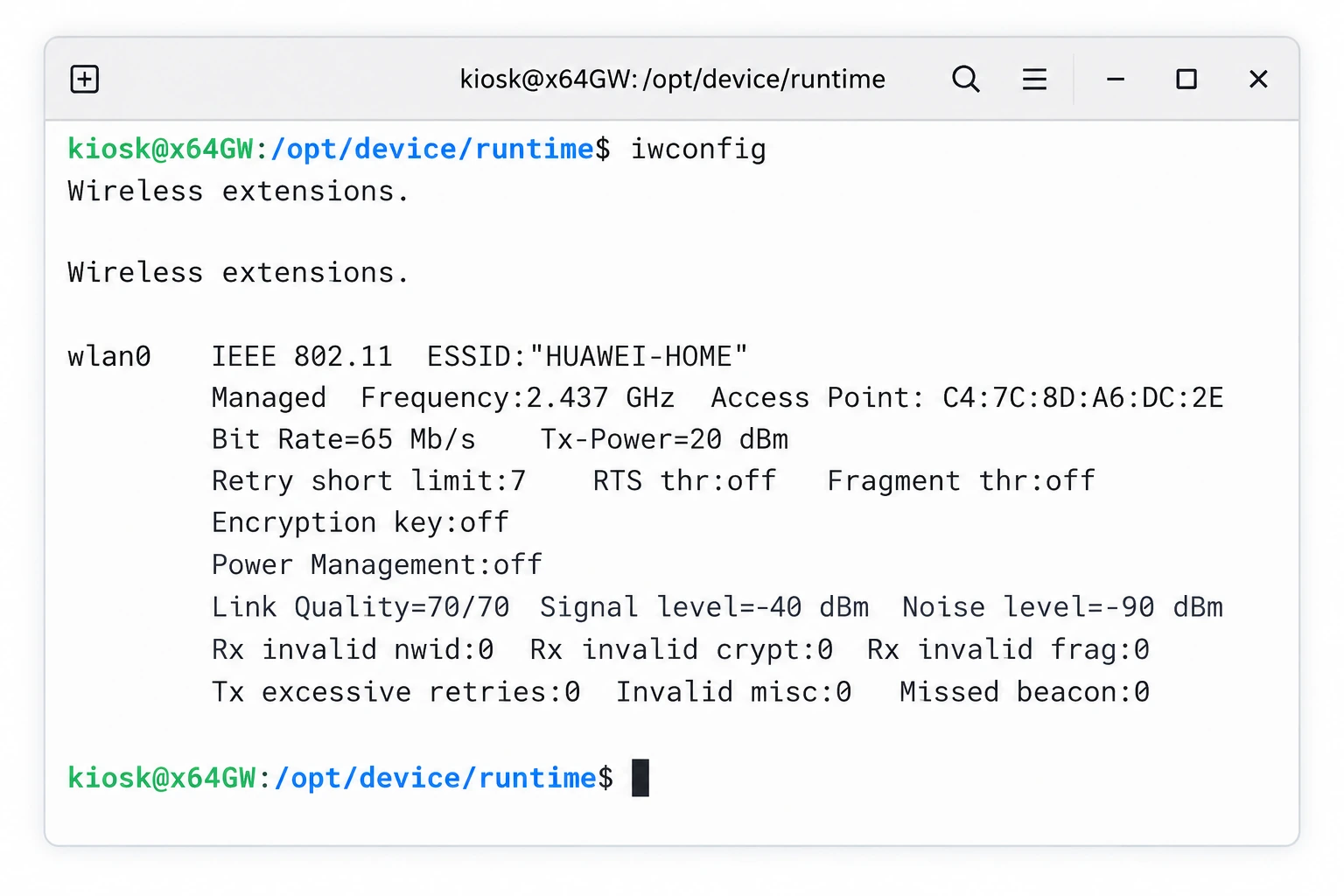
Type the following command and press Enter:
iwconfigThe output shows the connected Wi‑Fi network name (ESSID), the specific access point (Access Point), connection quality (Link Quality) and signal level (Signal level), if the adapter provides them.
Photograph all relevant output from this command.
3. Test reachability of the target address
Type the following command and press Enter:
ping 194.182.91.197This command tests reachability of the target IP address 194.182.91.197 using ICMP. Wait for approximately 5–6 lines of replies and photograph the output. If no replies arrive, photograph the current status or error message. After taking the photograph, you can stop ping with Ctrl+C.
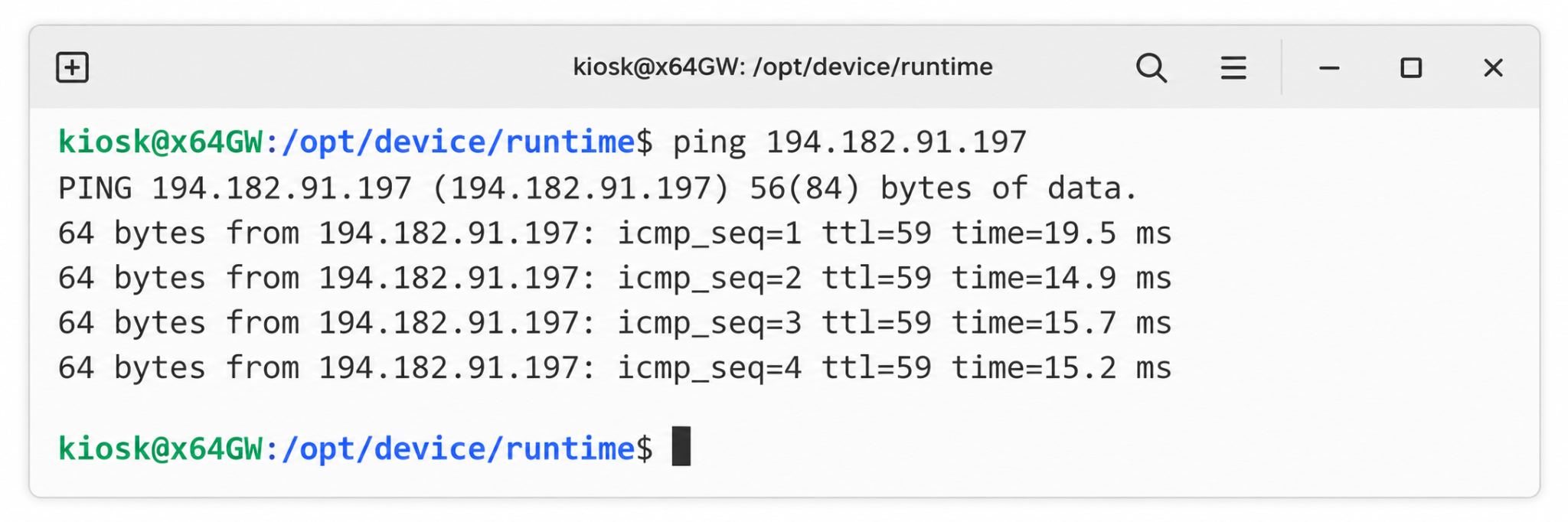
The values in the images are illustrative examples. Do not copy the example device IP address, Wi‑Fi network name or access point details into your settings. Keep the target IP address in the ping command exactly as shown above.
Send the results to support
Send all three photographs of the command output to support@screensoft.org as part of troubleshooting this issue.
Include the device name or identifier and the approximate time of the test. Do not send your Wi‑Fi password.
Close the windows and service menu
- Click or tap X to close the terminal window.
- Close the virtual keyboard using X.
- When only the service menu remains, tap or click anywhere outside it. This will also close the service menu.
What these tests confirm
- A Wi‑Fi connection alone does not guarantee access to the ScreenSoft service.
- A successful ping does not confirm that the required ports are accessible or that application communication works.
- An unsuccessful ping does not, by itself, prove that application communication is blocked; only ping replies may be blocked.
- Pinging a numeric IP address does not test DNS.
- Support will assess the results and, if necessary, ask the network administrator to check communication.
Contact ScreenSoft support at support@screensoft.org