
The “Web Page” application displays outdated content
The “Web Page” application in ScreenSoft displays a website from the URL entered in its settings. Even after the provider updates the source website, the application may still display outdated content, such as old shops, shop names or the previous interface of an interactive map. Restarting the computer alone may not help.
If the latest version of the source website appears in a regular browser only after a forced reload, locally stored data may also need to be removed on the device. Removing data from /storage/wwwLink/ serves a similar purpose: allowing the “Web Page” application to load the current content from the URL again. However, this is not technically identical to reloading a page in a browser.
Possible causes include locally stored content, browser cache, a service worker or an unavailable source.
Clearing temporary web application cache or removing local data from /storage/wwwLink/ may help.
Before deleting anything, complete the following checks.
- Confirm that the new version of the website or application has been published and works on another device. If it does, proceed to step 2. Otherwise, first resolve its availability with the provider.
- Check whether ScreenSoft Player is online. If it is, try a normal refresh or application restart as appropriate. If the issue persists, proceed to step 3.
- Before clearing cache or deleting data from /storage/wwwLink/, contact the web application provider’s technical support. Ask whether the application depends on local data, sign-in state, settings or offline content. ScreenSoft support can help verify file locations within the player and the scope of the operation if needed.
What is stored in /storage/wwwLink/?
The /storage/wwwLink/ directory is used to store web data locally for the “Web Page” application in ScreenSoft Player. It may contain temporary files, cache and other data from the embedded website. Removing this data allows content to be loaded again from the URL, but depending on the website it may also affect sign-in state, settings or offline content.
What is the difference between cache and local data?
As in a normal web browser, clearing the cache mainly removes temporary files (such as images and scripts), which are usually downloaded again when the page loads. Deleting local data may also affect settings, sign-in state, databases or offline content. The impact depends on the application and the actual directory contents; these operations are not necessarily equivalent.
How to run service commands
At the device: Use the touchscreen or a connected USB mouse to open the service menu, enter the device ID and select Terminal. Press Enter to run the command.
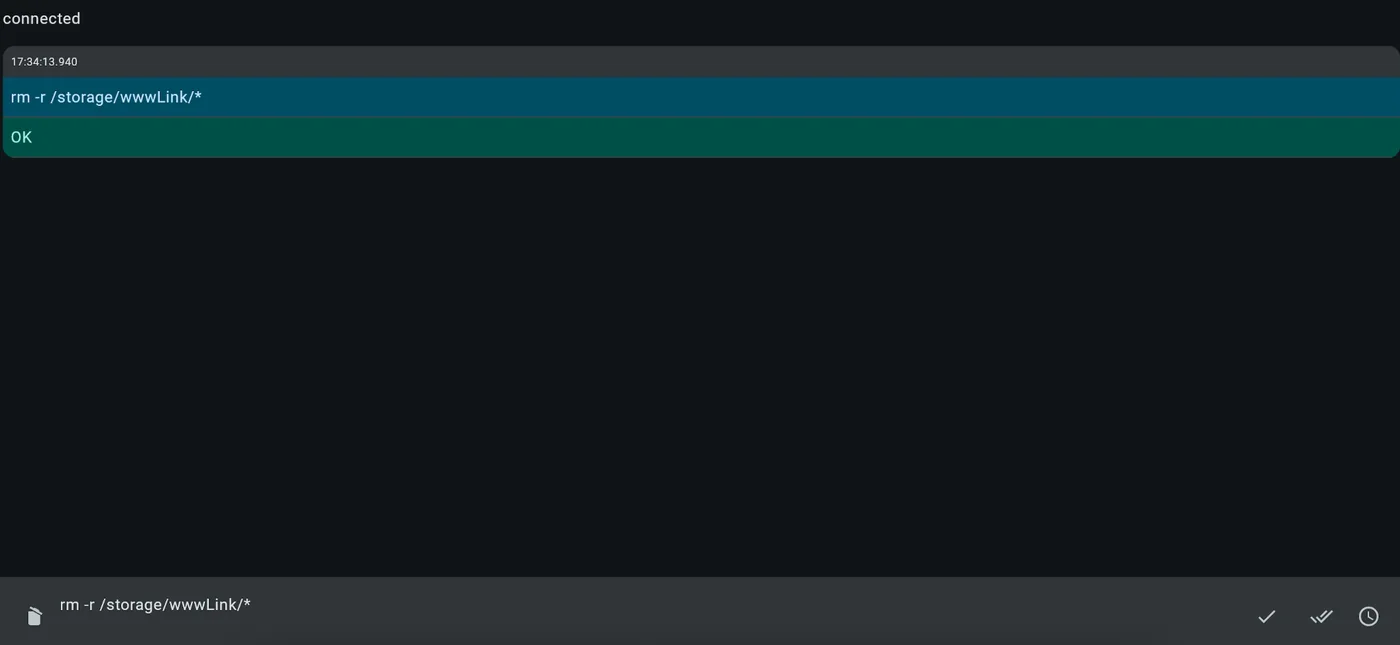
Remotely: Open Remote Console in ScreenSoft administration. You need Server Administrator permissions or higher, and the device must be online and communicating with the server. Send the command using the ✓ button.
Neither option available? Contact ScreenSoft support.
Clear cache
If the web application provider confirms which temporary files can safely be removed, and ScreenSoft support verifies their exact location in the player where necessary, prefer targeted cache cleanup. No deletion command is provided without a verified path and scope.
Delete local data
This is a broader operation affecting the contents of /storage/wwwLink/, described above. Confirm potential effects with the application provider and, if needed, ScreenSoft support first.
This command recursively removes entries matching the pattern under /storage/wwwLink/ (hidden entries may remain). It is not cache-only cleanup: application data and settings may also be lost. Use only after confirmation by the website provider and responsible administrator.
Command to copy:
rm -r /storage/wwwLink/*After removing local data, reload the “Web Page” application with an internet connection available and verify that it displays the current content. For an interactive map, check shop names and the appearance of the interface, for example.
Contact ScreenSoft support at support@screensoft.org