
Kindergarten
Introduction and orientation
Nine educational touchscreen games for landscape screens and the final two years of kindergarten.
Age groups and language
Younger children means the penultimate year of kindergarten; Older children means the final preschool year.
The app is currently available in Czech. Other language or regional versions can be arranged with your software provider.
Five themes and your own content
Domestic animals · Exotic animals · Family · Vehicles · Food
A theme supplies both graphics and educational content: pictures, vocabulary and tasks related to its subject. Children practise the game while also learning about that subject. The games provide the working foundation, and themes can be expanded. A new language, regional adaptation and a new theme can be prepared together as an agreed package.
Game examples
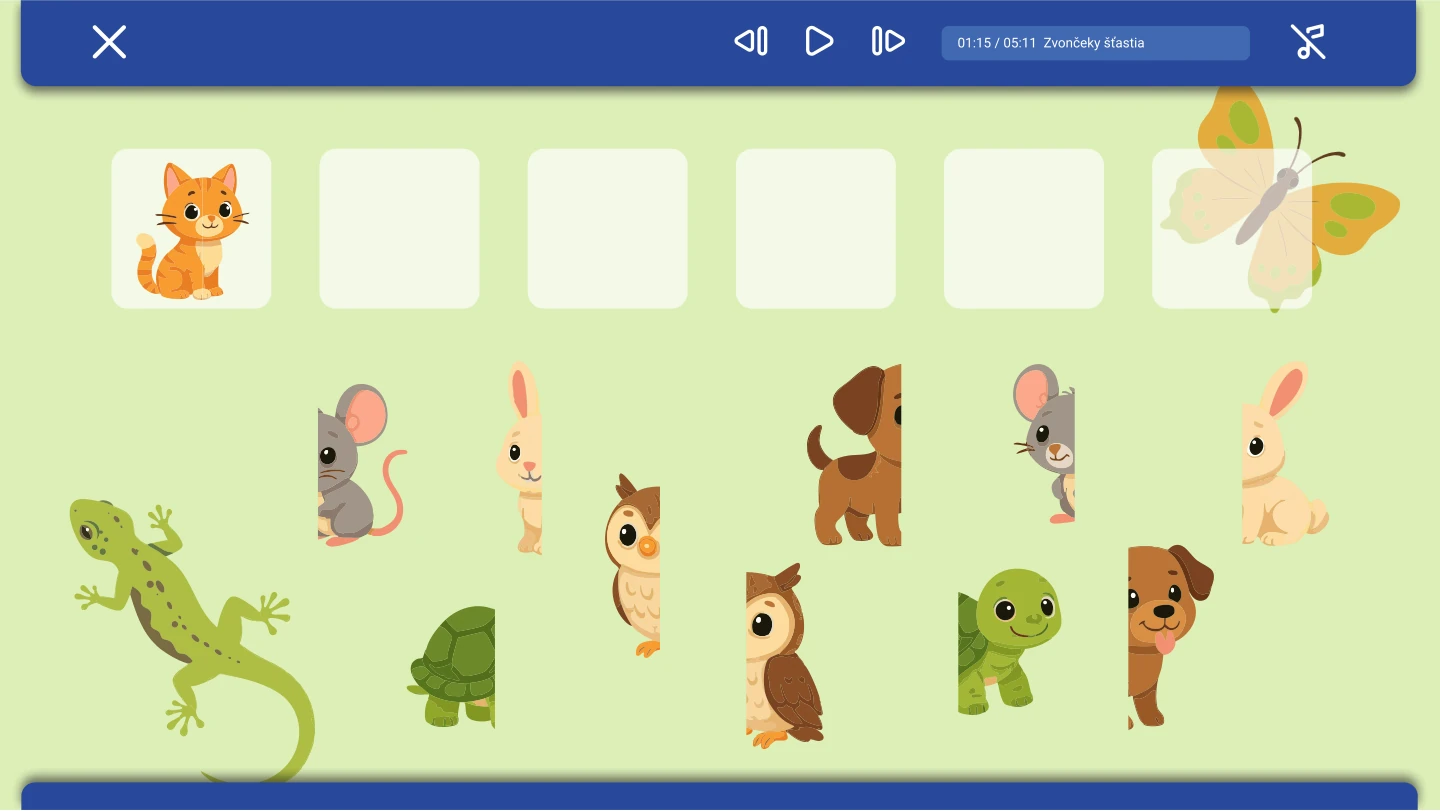
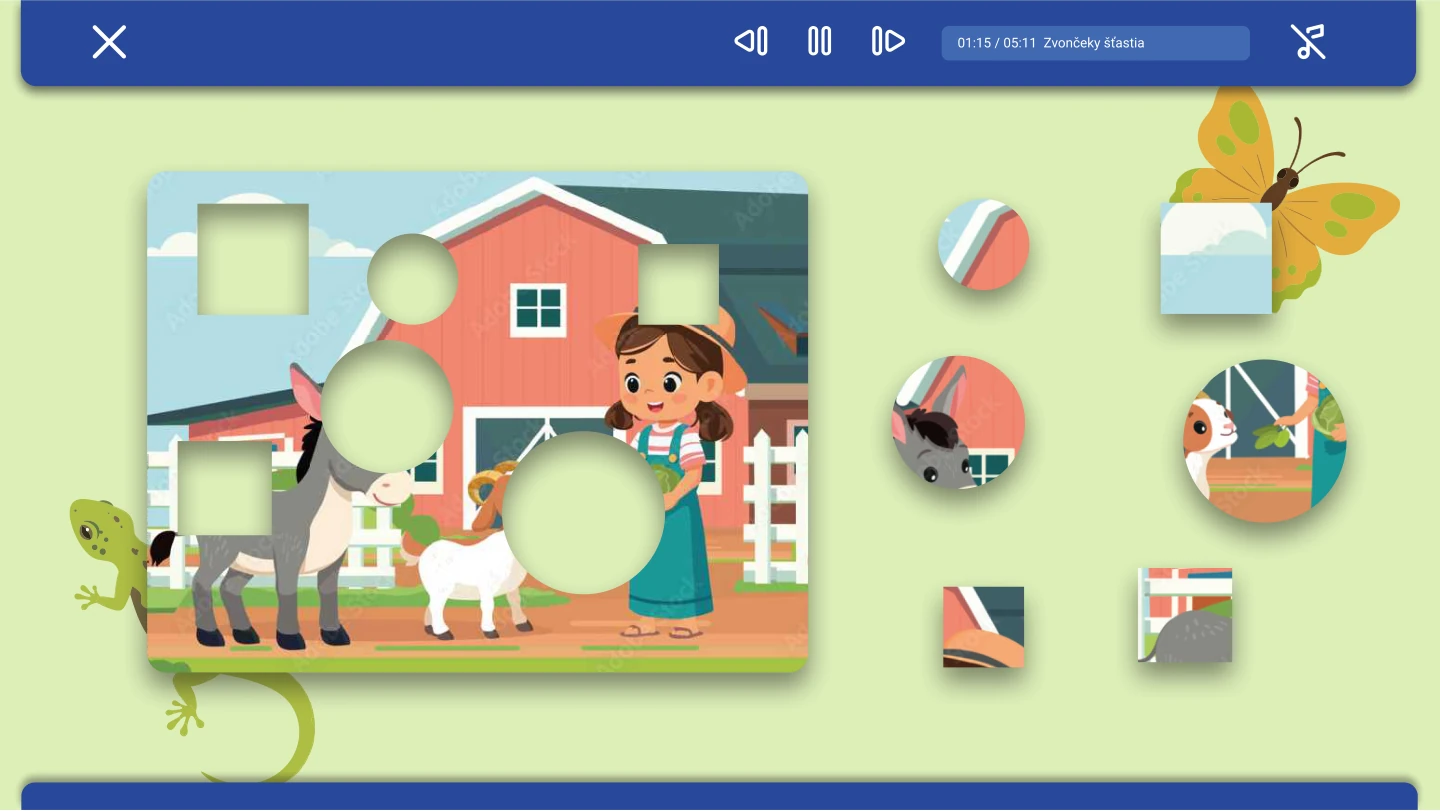
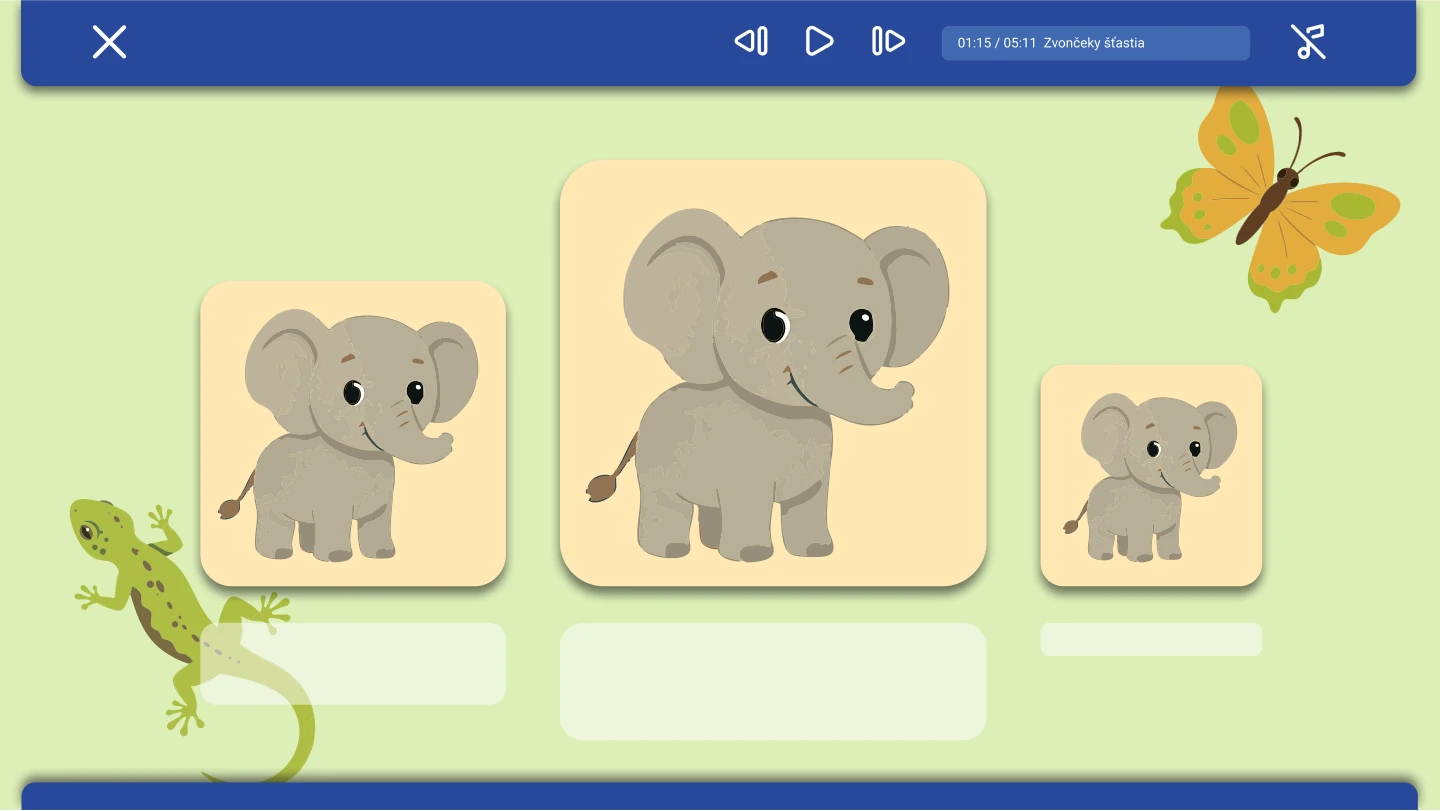
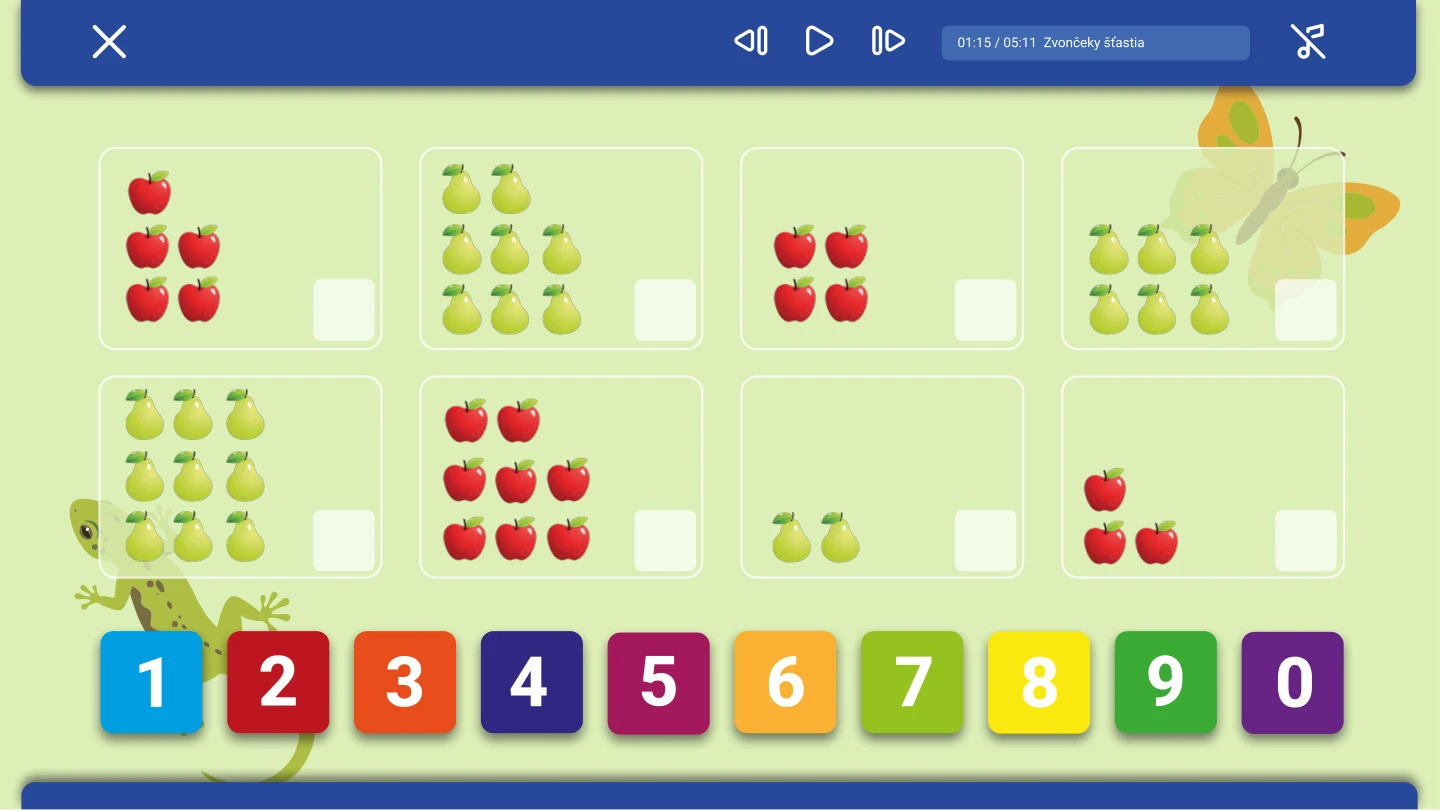
These examples show the Czech interface inside a landscape display. Browse with the arrows or swipe; every example remains accessible without JavaScript.
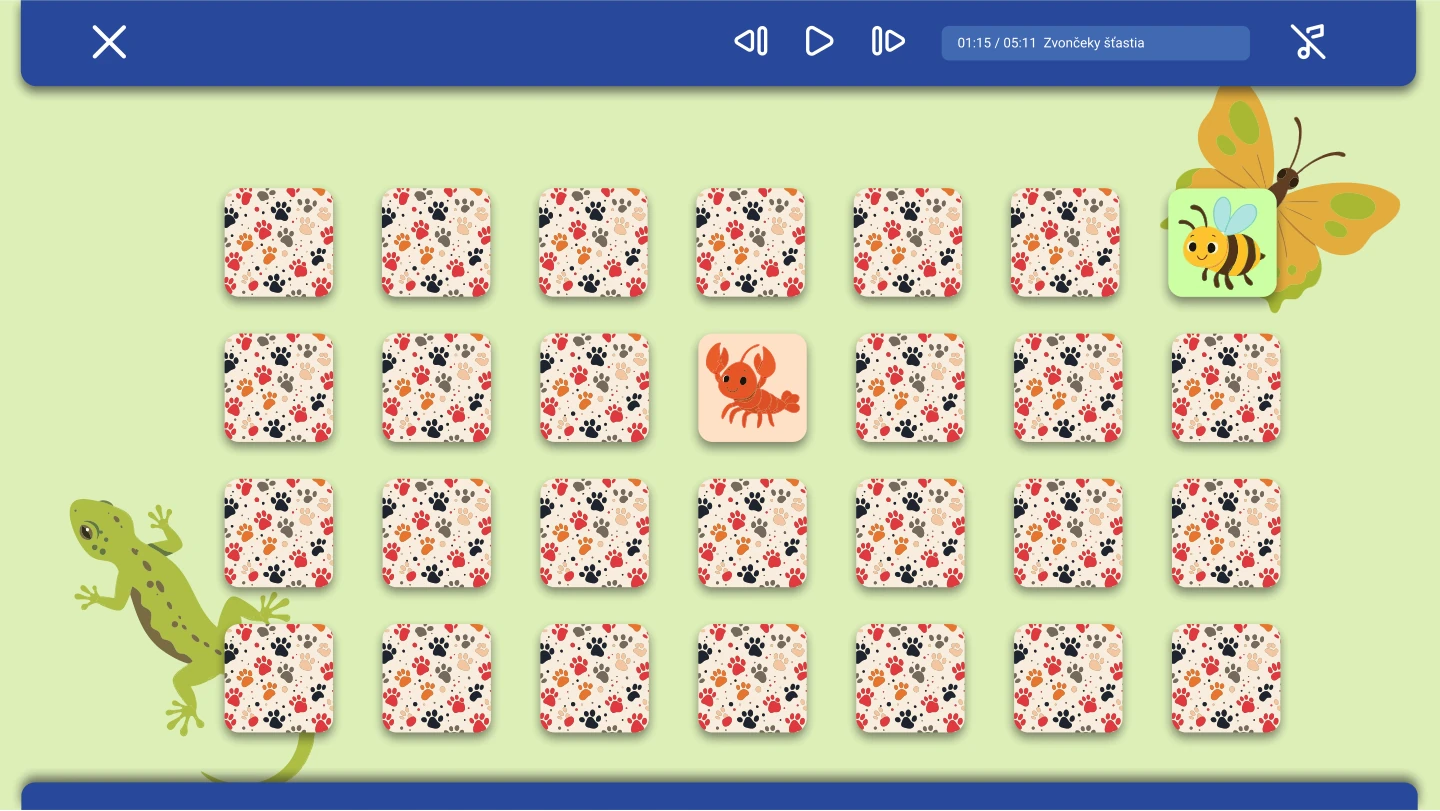
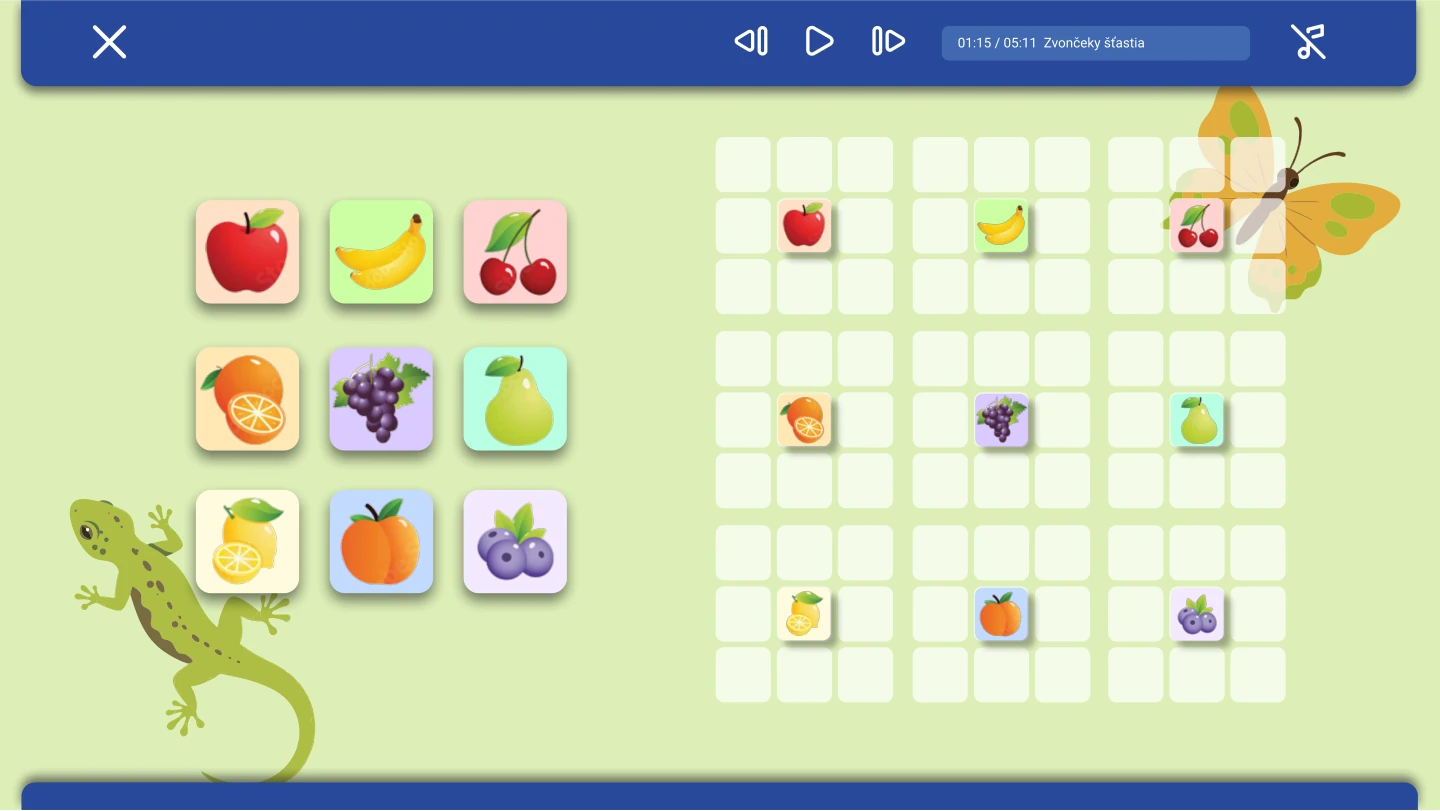
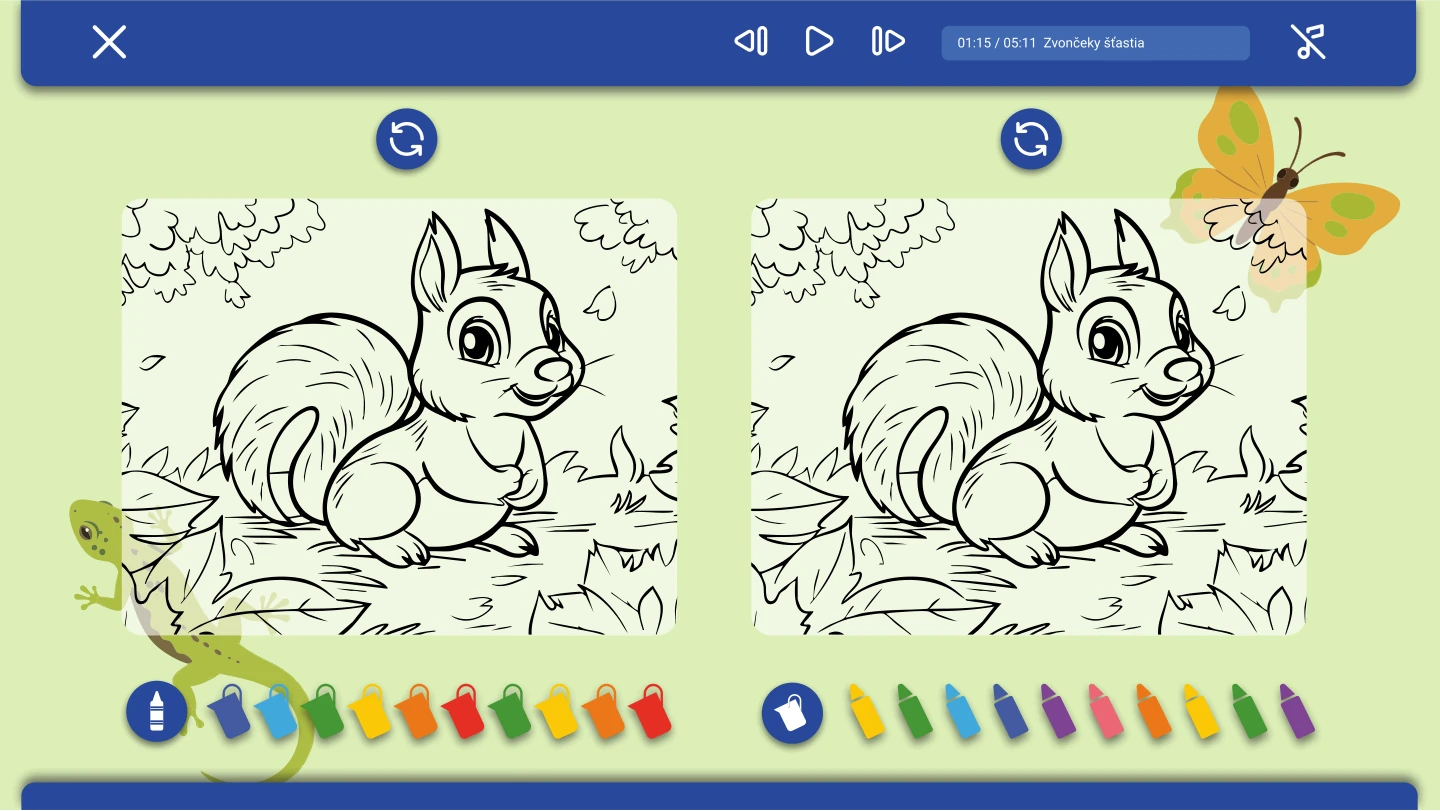
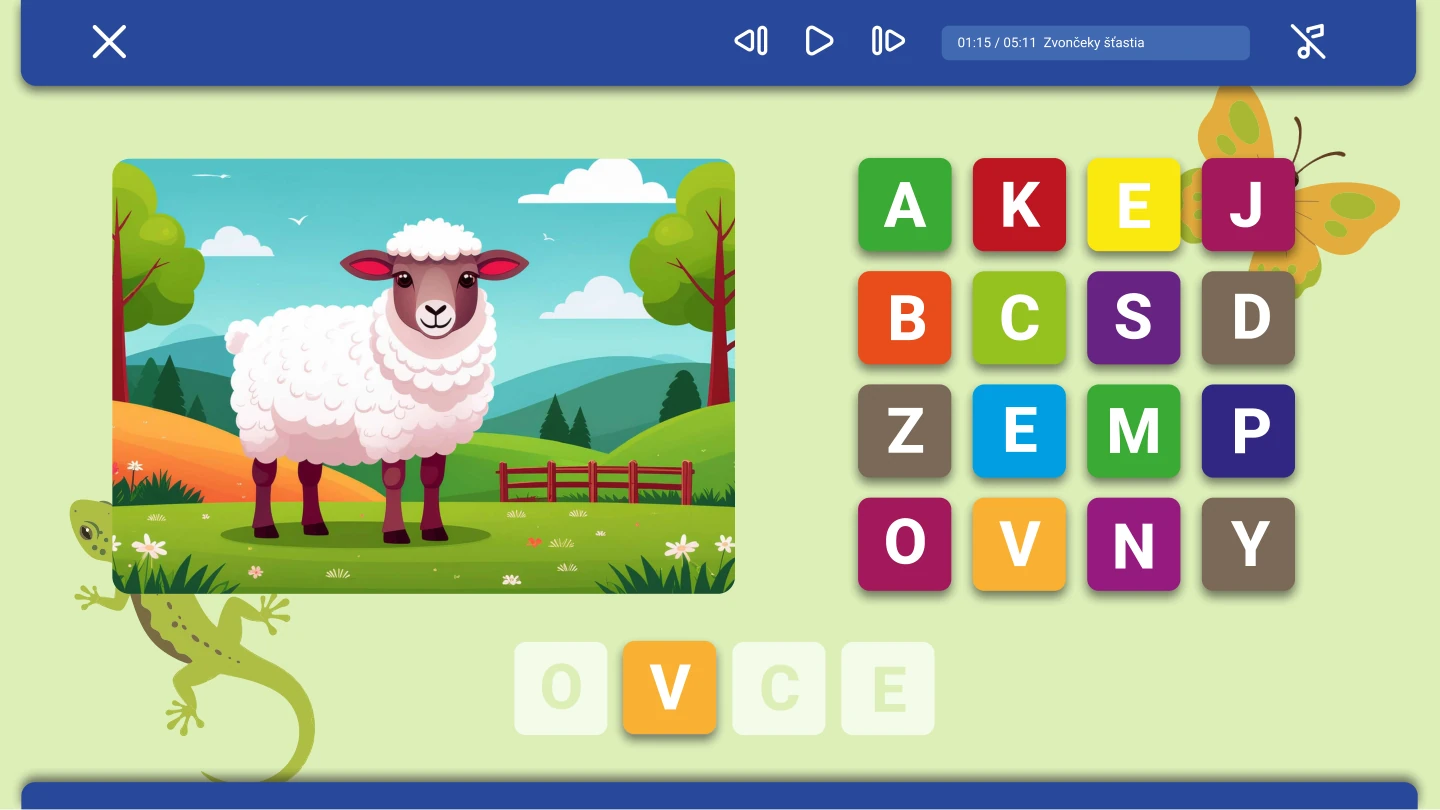
The nine games
- Memory: Tap cards to find matching pairs. Younger children use a 4 × 6 layout; older children use 6 × 9 cards.
- Sudoku: Complete a picture grid following sudoku rules. The audience setting selects a smaller 4 × 4 grid or a larger 9 × 9 grid.
- Colouring: Choose a colour and draw on an outline using touch. The screen provides two work areas side by side.
- Words: Drag letters to spell the word for a picture.
- Sorting: Drag pictures into groups according to the selected theme’s task.
- Missing pieces: Drag the missing parts into the matching positions in a picture.
- Sizes: Arrange objects by size. Younger children use four items; older children use eight.
- Counting: Match numbers to the number of objects shown.
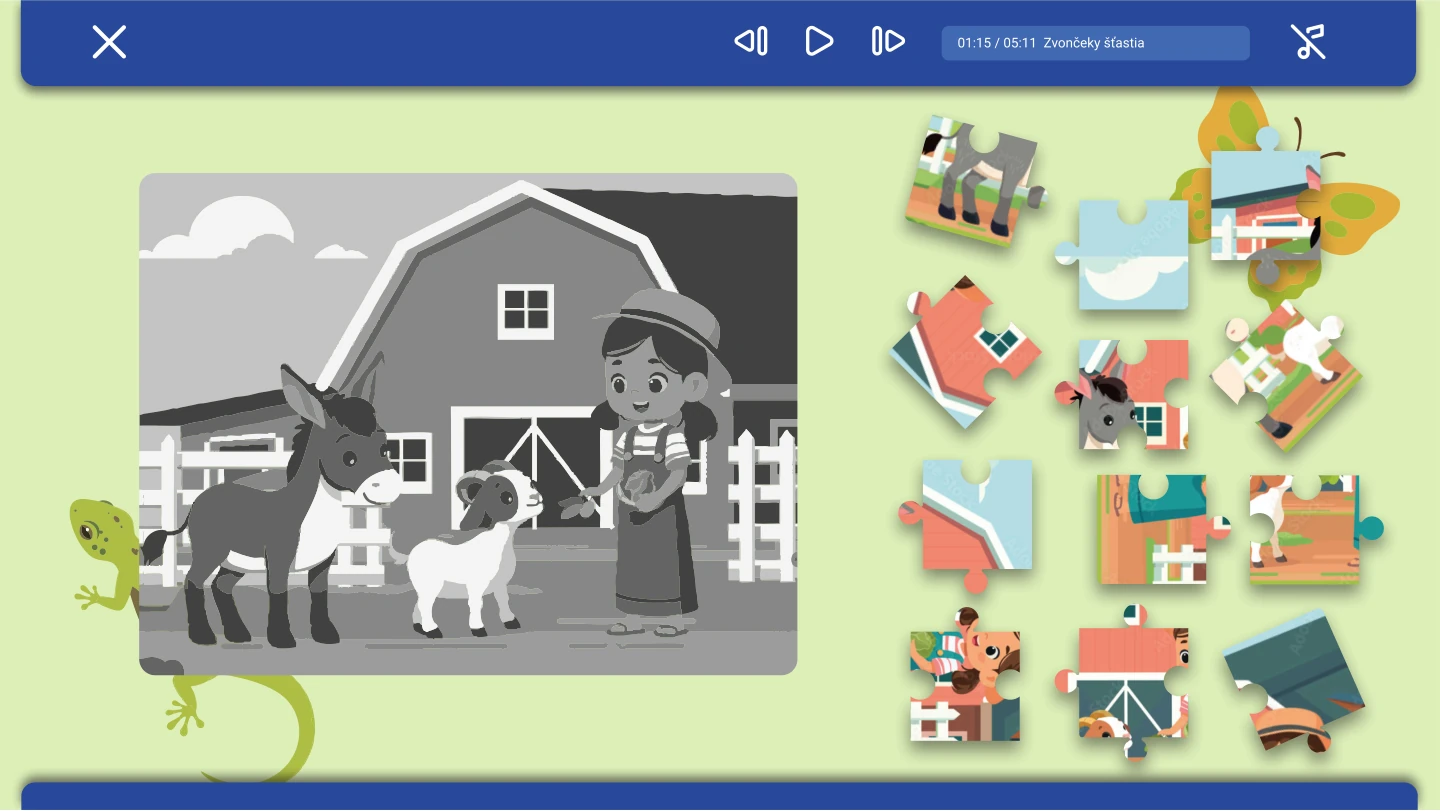
- Jigsaw: Drag pieces together to complete a picture.
Children choose a game and learn through pictures, words, counting, sorting and assembling images. The app is designed for a landscape touchscreen. It is not controlled by phone.
Steps and settings
Create and configure the app
- Open My applications, click + and select Kindergarten.
- General settings: enter the name and app icon, then choose the audience and theme. Adjust toolbar colours and the background image if needed.
The audience setting changes the difficulty of selected games, not just their appearance.
- Devices: select the target landscape touchscreens and configure the available publication settings.
- Wireframe images: add your own colouring outlines. The editor recommends a 16:10 ratio and at least 2048 × 1280 pixels.
- Images: add large pictures and assign words for the word game. A picture can have more than one word. The recommended ratio is 4:3 with at least 2048 × 1536 pixels.
A picture with no word assigned is excluded from this game.
- Icons: add small images and choose their background. The recommended size is 512 × 512 pixels; transparency allows the selected background colour to show through.
- Audio: choose your own MP3 files and edit their titles.
- Summary: check content, audience, theme and devices, then save. On the screen, verify delivery, the games, touch controls and audio.
Related topics and next steps
Contact your software provider.